
The Importance of WordPress Child Themes & How to Install Them!
by Sam Davis
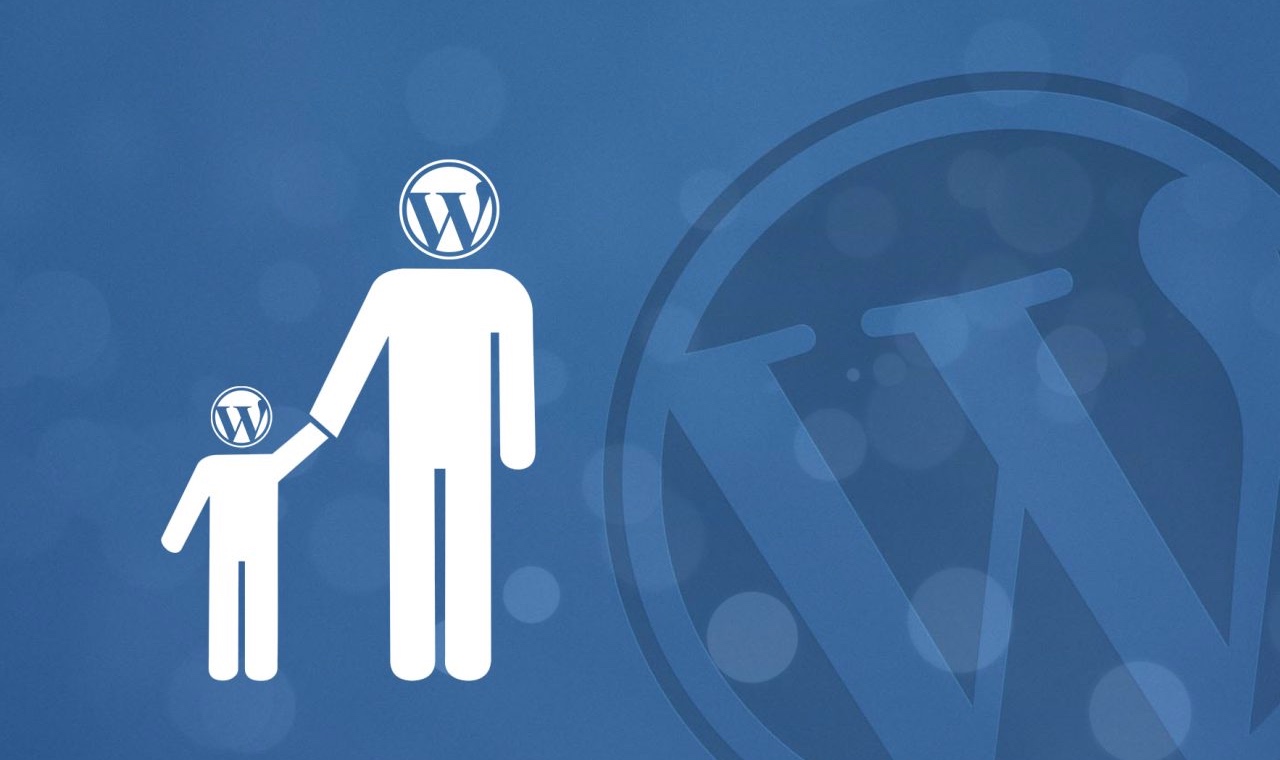
Using terminology supplied by WordPress, a “Child theme” is a template which inherits the functionality of a “Parent theme”. It goes on to exclaim that it is “often used when you want to customise or tweak an existing WordPress theme without losing the ability to upgrade that theme”. Confused? Well, you needn’t be, as in this tutorial, I’m going to explain exactly what a Child theme is, why you need it, as well as the easiest way to implement it – and good news… it’s not that tricky at all!
If you’ve downloaded a new WordPress theme or you have purchased one externally from somewhere such as Envato, after you have installed your theme, it will be ready to go and everything *should* look wonderful. However, what happens if you want to make changes to your theme files? Perhaps you feel the need to adjust a template or maybe you’ve have a circumstance whereby you need to edit some hard-coded CSS. If this is the case, then you will be requiring a child theme to do so…
Developers will often update their theme files to make sure it is still compatible with WordPress. When that auto-update happens, any code changes you’ve made… will be lost.
Theme developers are always keen to keep abreast of any security vulnerabilities that WordPress might have, or alternatively, they will be looking to fix any plugin conflicts which may have arisen that might cause their theme to stop functioning correctly. Either way, they will often take the steps to update theme files to make sure it is still compatible with WordPress, and when that auto-update happens, any code changes that you may have implemented in the theme files… will be lost.
Therefore what you need to do is make any of your edits in a dedicated separate theme, or “child theme”. The child theme runs in an adjacent folder to your main theme folder. When creating one, you are simply telling WordPress – “if there are any files in this child theme, use them! If not, revert to the parent theme”.
For example, if you have the need to change footer.php, you should copy that file from your parent theme into your child theme and make the changes there. WordPress will, as a result, use that file in priority over the one that is residing in your parent folder.
To make a child theme, you firstly need to create a folder in your /wp-content/themes/ directory. Many developers choose to name their child theme the same as the main/parent theme, appending -child at the end, however you might want to hide the theme name you’re using to any snooping developers and call it something different. Either way, whilst you cannot completely disguise the template you’re using, you can certainly make it more difficult to spot, therefore why not rename it to something different – as it definitely looks more professional anyway!
You also need two files, functions.php and style.css (and a screenshot.png image if you’re wanting to do it comprehensively).
The functions.php file should look like this…
<?php
add_action( 'wp_enqueue_scripts', 'enqueue_parent_styles' );

function enqueue_parent_styles() {
   wp_enqueue_style( 'parent-style', get_template_directory_uri().'/style.css' );
}
?>
Similarly, you should add a file called style.css, which contains the following information.
/*
Theme Name: Your Theme Name
Theme URL: https://www.websiteright.co.uk
Description: Your Description
Author: Author
Author URL: https://www.websiteright.co.uk
Template: theme
Version: 1.0.0
Text Domain: theme-child

*/ Custom CSS goes after this line
Be sure though to change the “theme name” to the new name of your child theme, and make sure the “template” is the exactly spelling of the folder name of your parent theme. Similarly, the “text-domain” should be the exact folder name of the the child theme that you have created. You can also change the other details in the code to show your own website address and author name, although these do not have any direct bearing on the functionality of the child theme.
As well as this, you may want to add a screenshot.png file – this is for if you want it to look pretty within the Appearance section of your WordPress Admin, however it is not essential.
And that’s it! It is a really simple process but something all developers should look to do without fail, as it will save a lot of heart-ache at a later date when the theme has been updated and you’re left without any of your original edits!

Sam Davis
I am fanatical about providing useful web experiences, via bespoke websites which engage, inform and entertain. I have been making websites since a young age, and am a keen supporter of AFC Bournemouth.